Importing PiPER URDF into Isaac_Sim
Preface
With the continuous development of robotics technology, simulation platforms play an increasingly important role in the research, development and testing of robotic arms. As a high-performance simulation tool launched by NVIDIA, Isaac Sim helps developers efficiently model, simulate and verify algorithms for robotic arms. This article will detail how to import the URDF model of the PiPER robotic arm into Isaac Sim, perform relevant configurations and operations, providing a reference for subsequent development and applications.
Tags
PiPER robotic arm、Isaac Sim
Respositories
- Navigation Respository: GitHub - agilexrobotics/Agilex-College: Agilex College
- Project Repository: GitHub - agilexrobotics/piper_isaac_sim: piper_isaac_sim
Environment Configuration
- Operating System:Ubuntu 24.04
- ROS Version:ROS2 jazzy
- Graphics Card:5090
Install Graphics Card Driver
sudo apt update
sudo apt upgrade
sudo add-apt-repository ppa:graphics-drivers/ppa
sudo apt update
sudo ubuntu-drivers autoinstall
#reboot
reboot
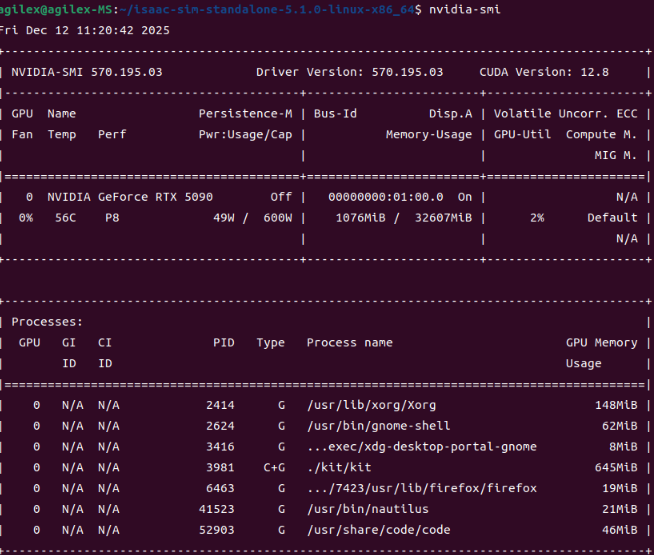
After rebooting, you can use the following command to verify if the driver is installed successfully:
nvidia-smi
Install isaac sim
Installation Method: Installation — Isaac Sim Documentation
After downloading according to the link, unzip it using the following method:
cd ~/Downloads
unzip "isaac-sim-standalone-5.1.0-linux-x86_64.zip" -d ~/
cd isaac-sim-standalone-5.1.0-linux-x86_64/
./post_install.sh
./isaac-sim.selector.sh
Select isaacsim.ros2.bridge for the ROS Bridge Extension; then click Start to launch:

Once successfully opened, you can prepare to import the URDF model.
Import URDF
Download URDF Model
Download Link: GitHub - agilexrobotics/piper_isaac_sim: piper_isaac_sim
The URDF files and USD for the Piper series will be continuously updated in the future.
After opening Isaac Sim; select File->Import in the upper left corner; select the URDF model to import according to the actual path:
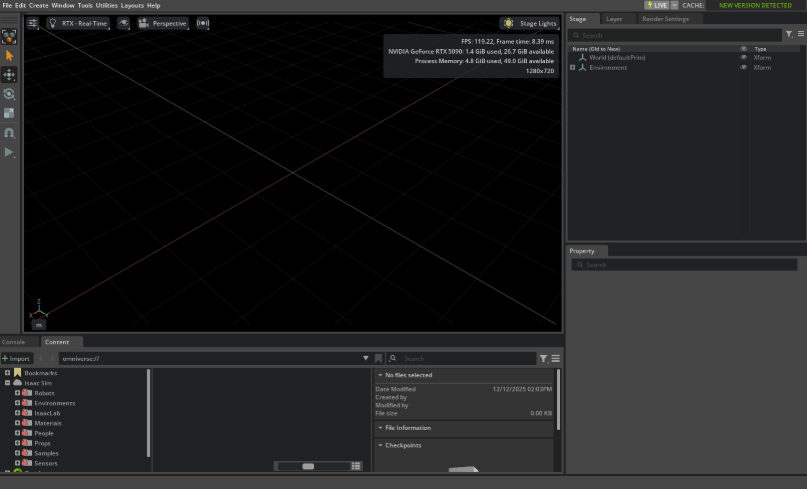


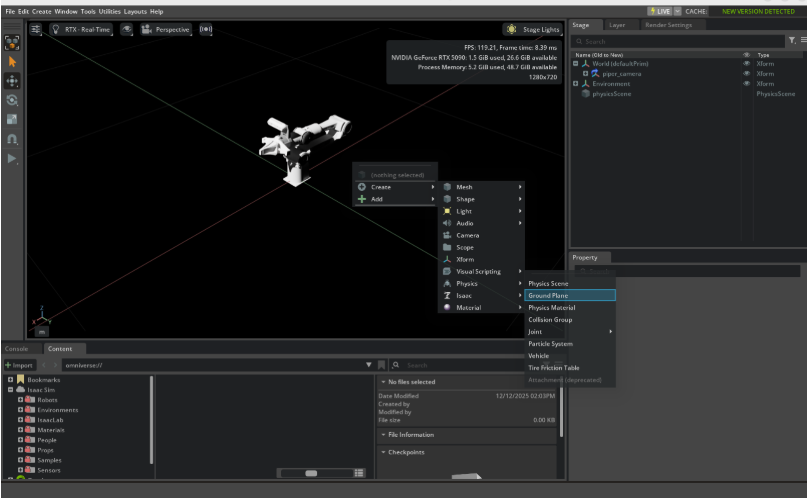
After successful import, you can see the robotic arm appear at the center position; you can add a ground plane and increase the brightness:
Click the triangle button on the left; after starting the simulation, you will find that the gripper moves. This is because some physical parameters are not defined in the imported URDF and need to be set in Isaac Sim:
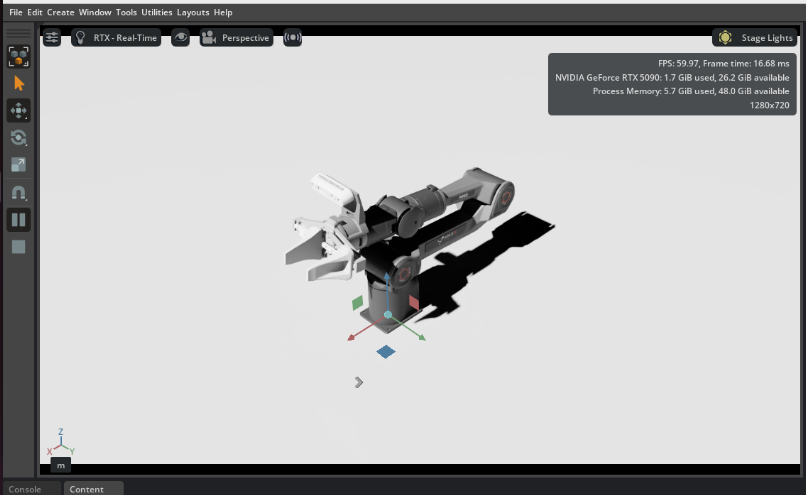
The parameter setting method is as follows: open joint1 of the robotic arm; set Damping to 80 and Stiffness to 400 in Drive->Angular ; set all movable joints in the same way.
These parameters are for reference only.
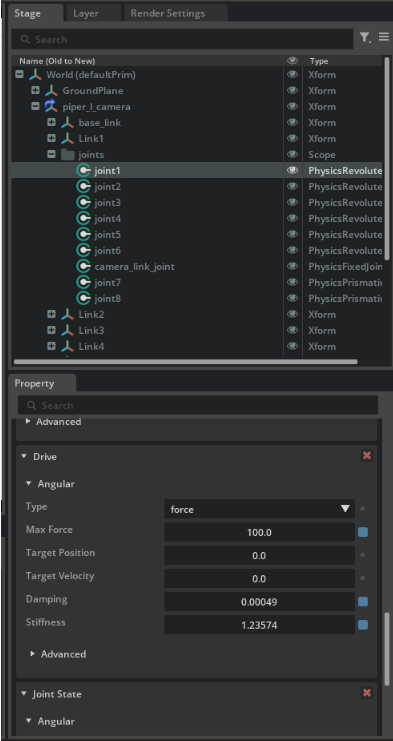
After setting, start the simulation again, and the robotic arm is successfully imported.
Add Camera
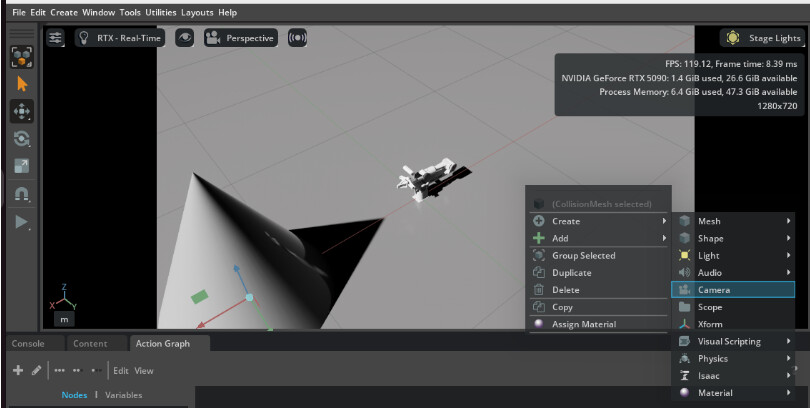
Right-click in the blank space, select Create->Camera ; create a new camera perspective:
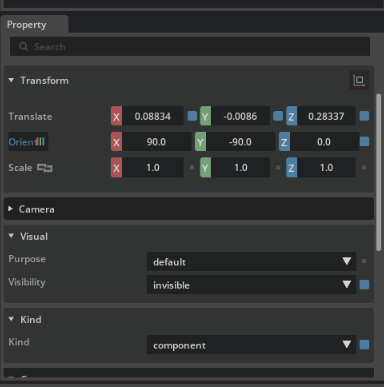
After creation, you need to adjust the camera perspective in Property->Transform ; then in Visual->Visibility , select invisible to hide the camera:
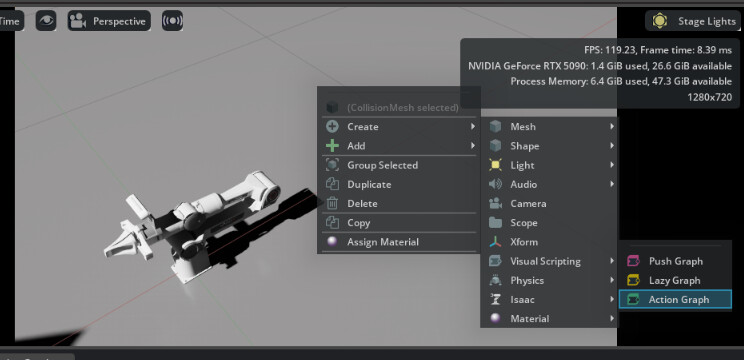
Right-click in the blank space, select Create->Visual Scripting->Action Graph ; create an Action Graph to publish the camera perspective via ROS2:
The content in the Action Graph is shown below:
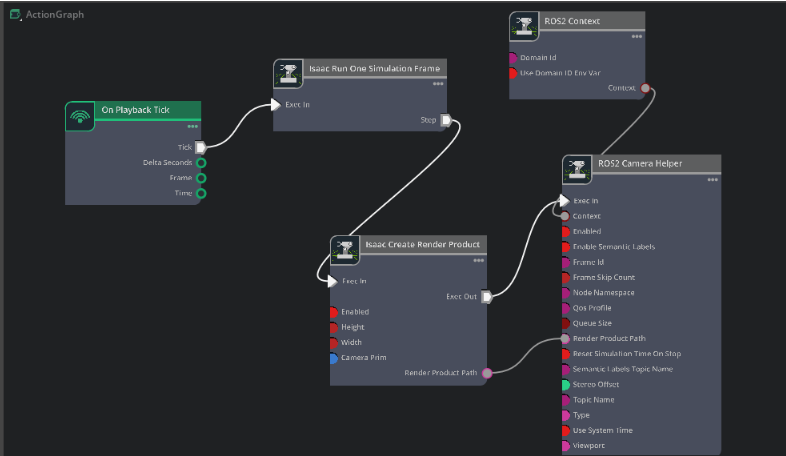
After connecting the modules, you need to set some parameters:
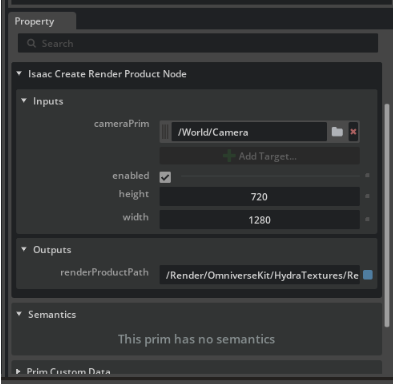
For Isaac Create Render Product ; select the newly created camera perspective for camera Prim :
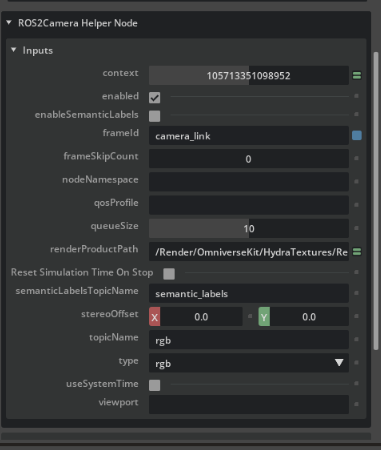
For ROS2 Camera Helper ; you can set the frame id and topicName of the camera topic:
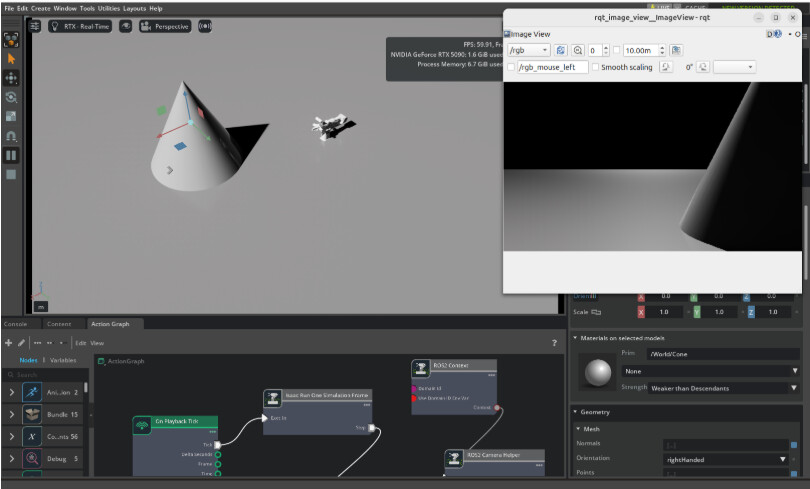
Press Ctrl+S to save the USD model, and the import of the Piper USD model is completed.
This article details the complete process of importing the PiPER robotic arm URDF model into the Isaac Sim environment, including environment configuration, model import, physical parameter setting, and camera perspective creation and ROS2 topic publishing. Through these steps, developers can quickly realize visualization and interaction of the PiPER robotic arm in the simulation environment, laying a solid foundation for subsequent algorithm development and system integration. If you encounter problems during actual operation, you can refer to relevant official documents or community resources for further study and communication.